Get phone and SMS alerts fromTestMu AI
TestMu AI raises the alarm — Spike makes sure a human hears it. Every TestMu AI alert becomes an incident with on-call schedules, escalations, and alerts on phone, SMS, Slack, email, WhatsApp, and Teams.
Set up with AI
I use TestMu AI for monitoring and Spike for on-call and incident management. Walk me through connecting them: create a TestMu AI integration in Spike, copy its webhook URL, and add that webhook to TestMu AI alert settings. Then help me send a test alert to confirm incidents show up in Spike.
What is TestMu AI?
TestMu AI keeps watch over your systems and raises an alert the moment something goes wrong — a failed check, an error spike, a service that stops responding.
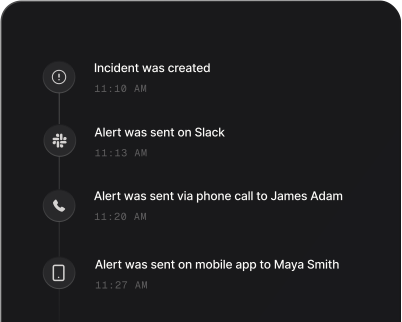
Connected to Spike, those alerts become incidents: the right on-call person gets a phone call and SMS within seconds, similar incidents are grouped to cut the noise, and everything is tracked until it is resolved.
How to set up TestMu AI alerts
Every Spike integration is a unique webhook URL. Paste it into TestMu AI and alerts start flowing — no agents, no code.
Step 1: Create a TestMu AI integration in Spike
In your Spike dashboard, open Integrations and choose TestMu AI. Spike generates a unique webhook URL for this integration — copy it.
Step 2: Add the webhook in TestMu AI
Open the alert or notification settings in TestMu AI, add a webhook endpoint, and paste your Spike webhook URL.
Step 3: Send a test alert
Trigger a test from TestMu AI. The alert lands in Spike as an incident and your on-call team is alerted immediately.
That's it — TestMu AI alerts now page whoever is on call.